Illustrator: importing one file into another without losing its layers
16 April 2023 · tutorials, adobe illustrator
Introduction
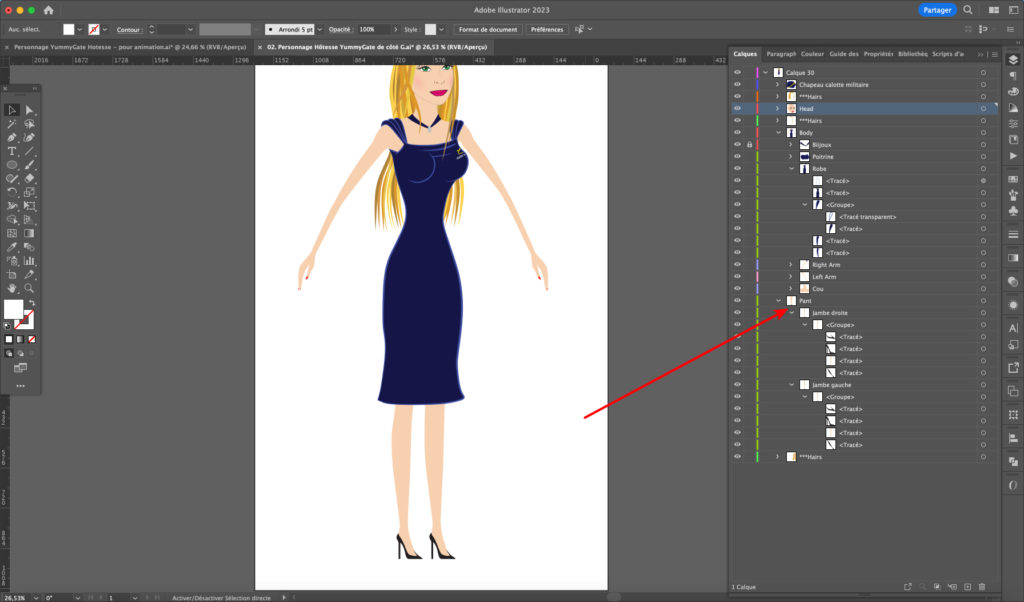
For technical reasons (to free up RAM and avoid crashes) or for organisational ones, you may end up working on several separate Illustrator files that then have to be assembled on the final artwork.
With the usual method (File > Place), the document comes in as a linked image, or all the layers end up flattened, without their hierarchy.
Here is a simple way to import one Illustrator file into another while keeping the layer structure and hierarchy, using the Paste Remembers Layers option, available from the Layers panel menu. It still works in recent versions of Illustrator.
It also imports hidden and locked layers: the whole composition comes across intact.
Procedure
- Create a layer and place all the elements in it.
- Select everything while holding down the Shift key.
- Open the Layers panel menu
 .
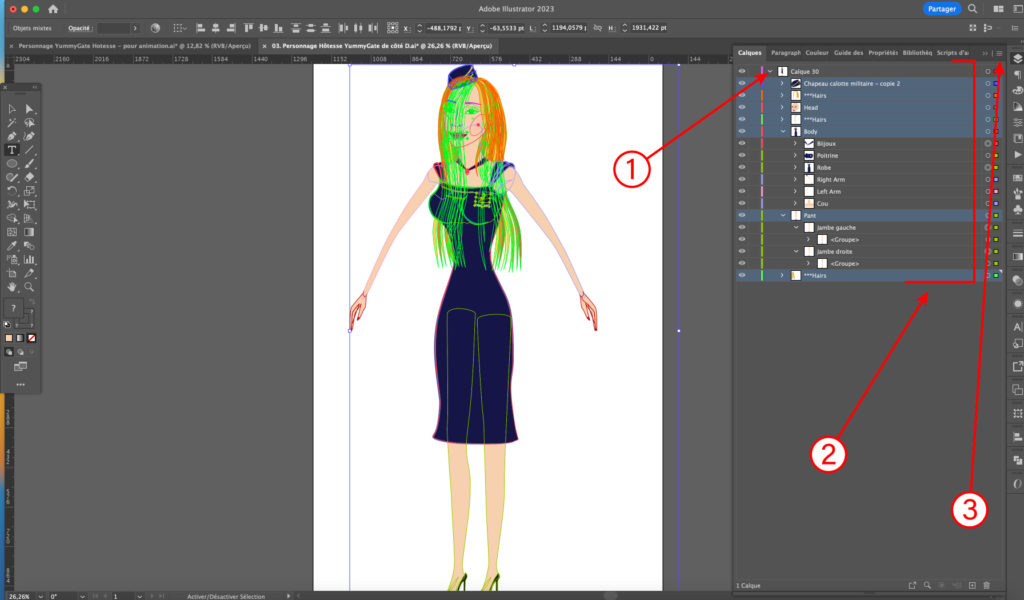
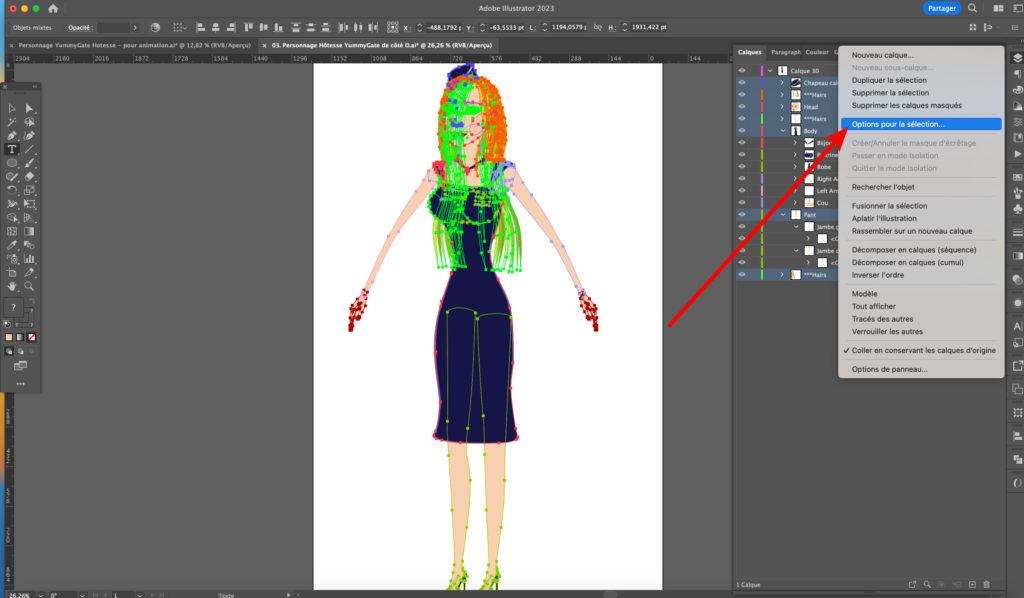
Make sure Paste Remembers Layers is ticked at the bottom of the list, then select “Options for Selection”.
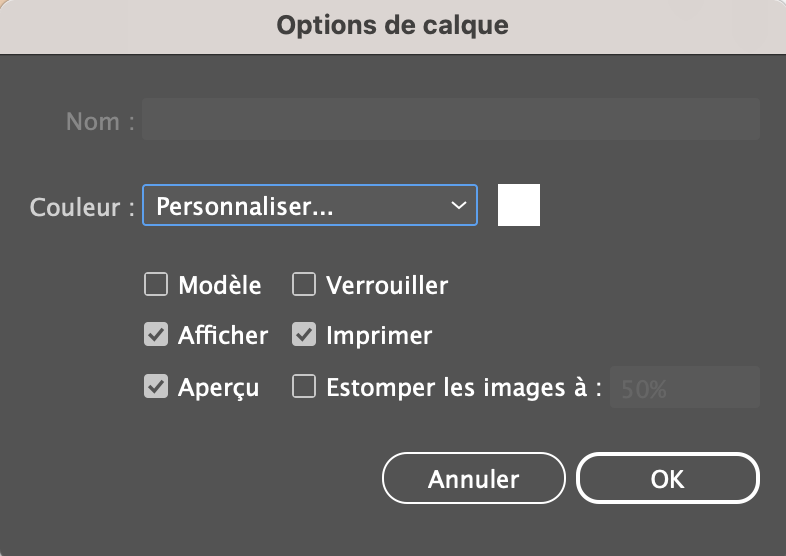
- Copy the settings below into the layer options, then click OK.
- Copy everything (Cmd+C on Mac, Ctrl+C on Windows).
- Open the Illustrator file containing the artwork into which you want to paste your layers.
- Make sure its elements are grouped in a new layer, and lock it.
- Paste everything (Cmd+V on Mac, Ctrl+V on Windows).

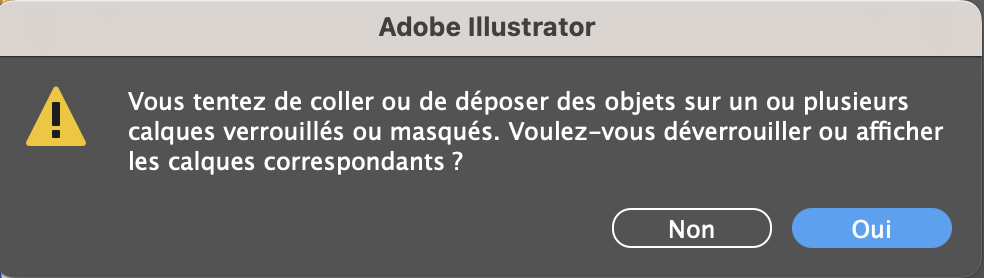
Click “Yes” in the dialog box that appears.
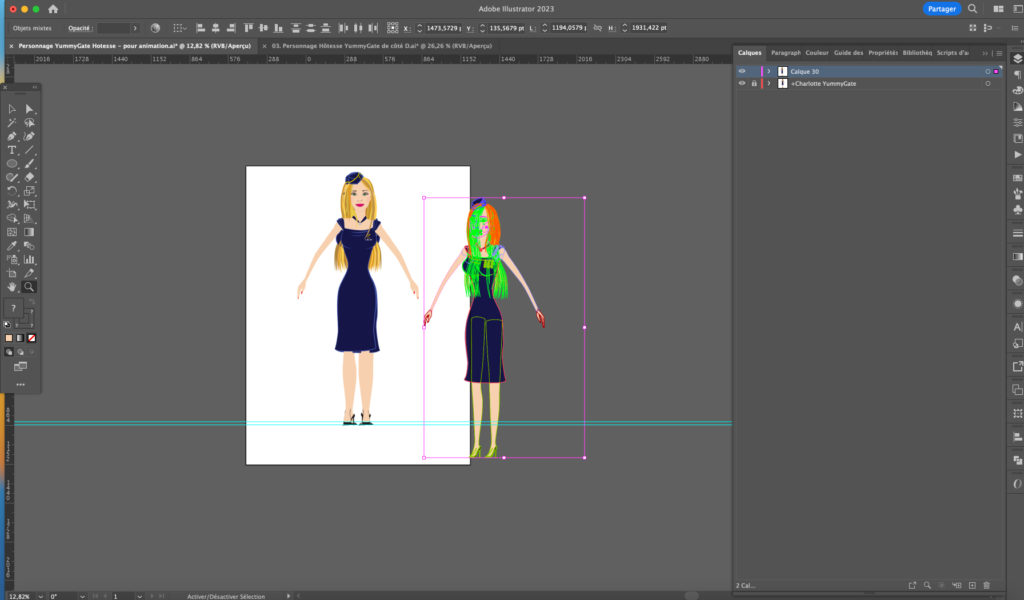
All the elements are now integrated into the destination file.
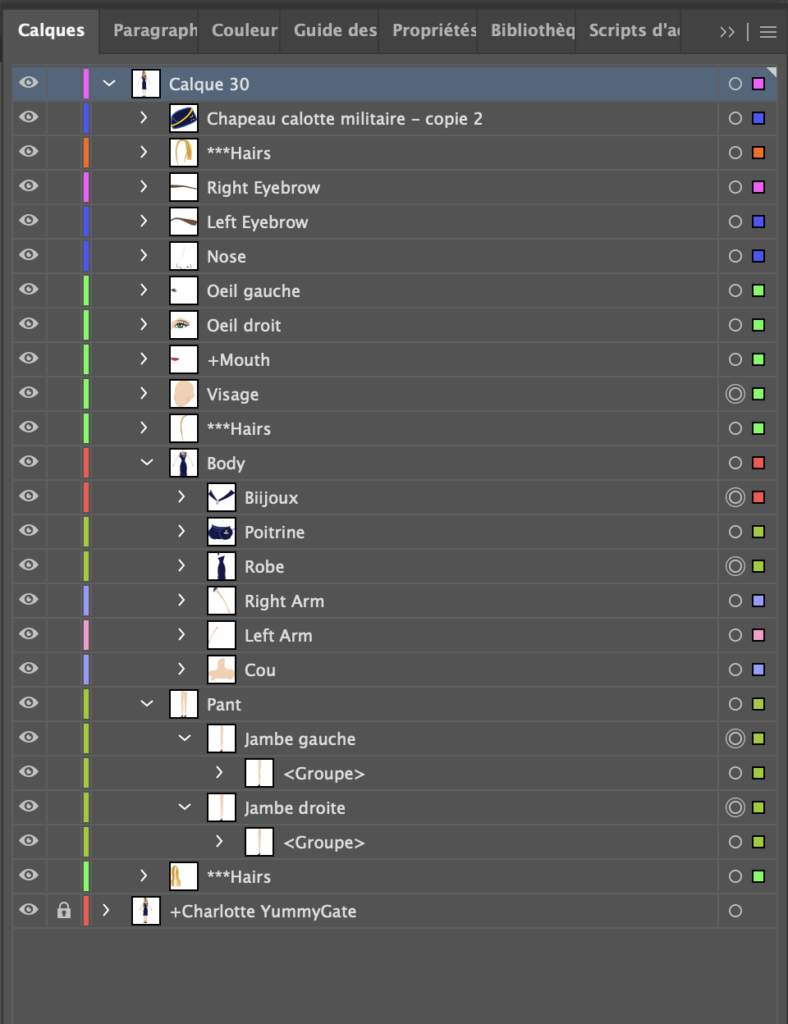
By expanding the new layer, you can check that the layer structure has been preserved and that the hidden layers have been added.
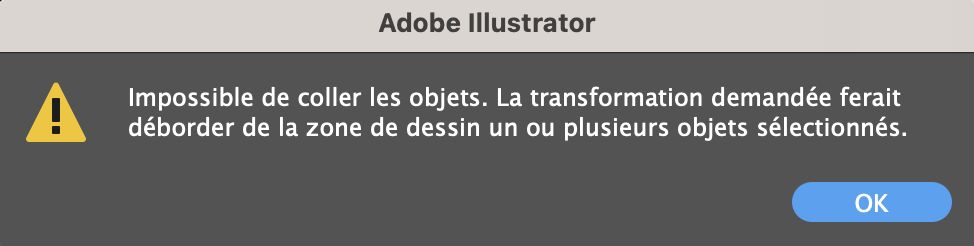
If, when you paste your artwork, the following message appears: “Can’t paste the objects. The requested transformation would make some objects fall completely off the drawing area.”
This is most likely caused by guides left in your document.
To fix this, go to:
- View
- Guides
- Clear Guides.
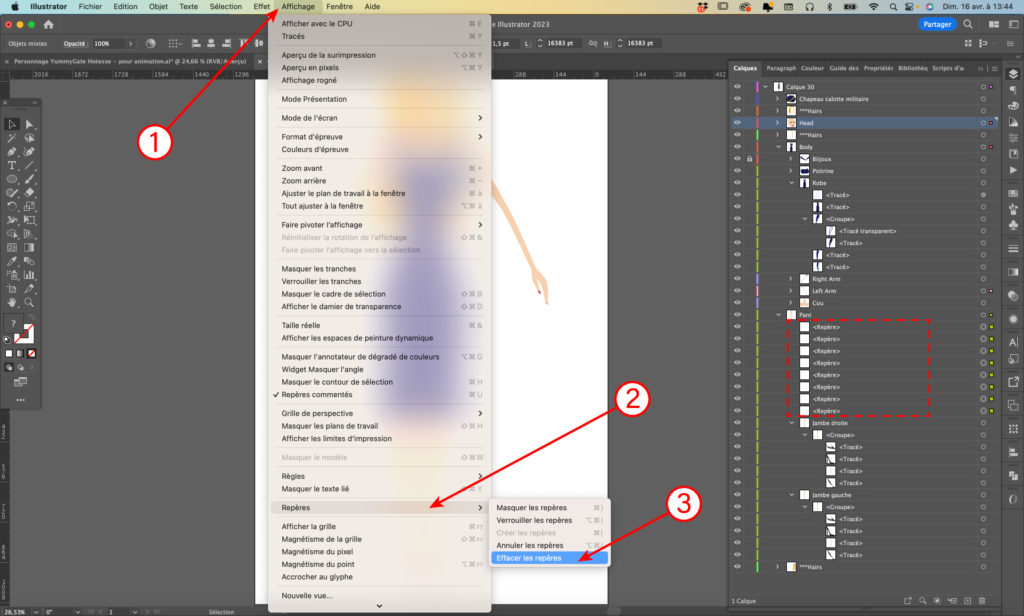
You will now see that the guides that were in the Layers panel have been cleared.
You can now repeat the procedure by copying the layers and pasting them into the destination file.